ENGINEERING·JUNE 12, 2026
Auto zoom that feels intentional | not every click is a punch-in
How Screen Beaver scores glances vs typing vs menus so zooms feel like an editor cut the tutorial, not a screen recorder on caffeine.
Screen Beaver Team·9 min read

Bad auto zoom is easy to recognize. The frame lunges at every click, backs out before you’ve read the menu, then chases the pointer across the screen. It technically adds motion, but it makes a calm product look frantic. A useful zoom has an editorial reason: it tells the viewer where to look, gives them enough time to understand the change, and gets out of the way before the next idea. Screen Beaver’s goal isn’t maximum movement. It’s a small number of cuts that feel chosen. If the viewer notices the camera more than the setting you changed, the movement has missed its job.
A click isn’t automatically important
Consider a billing demo. Opening the plan menu deserves attention because it changes the viewer’s context. Clicking a checkbox inside that already-focused panel probably doesn’t need another punch-in. Screen Beaver looks at more than the click event: pointer approach, dwell time, typing, the size of the target, movement after the action, and the relationship to nearby events. Those signals help separate a glance from a decision. No scoring model is perfect, but it’s considerably less annoying than treating every mouse-down as a camera cue.
Use a ladder of emphasis
Not every useful moment deserves the same crop. A soft zoom can guide the eye toward a search field without hiding the rest of the interface. A stronger punch works when a compact menu contains the whole point of the scene. Holding the wider frame is often the right choice after a dashboard update, because viewers need to see the consequence beyond the button. Mixing those levels creates rhythm. Using the strongest level repeatedly just teaches people to ignore it.
- Stay wide when the result affects several parts of the page
- Use a soft follow for typing, filters, and nearby controls
- Reserve tighter punches for small targets with real narrative weight
- Leave a beat after the action before moving the frame again
Merge motion that belongs together
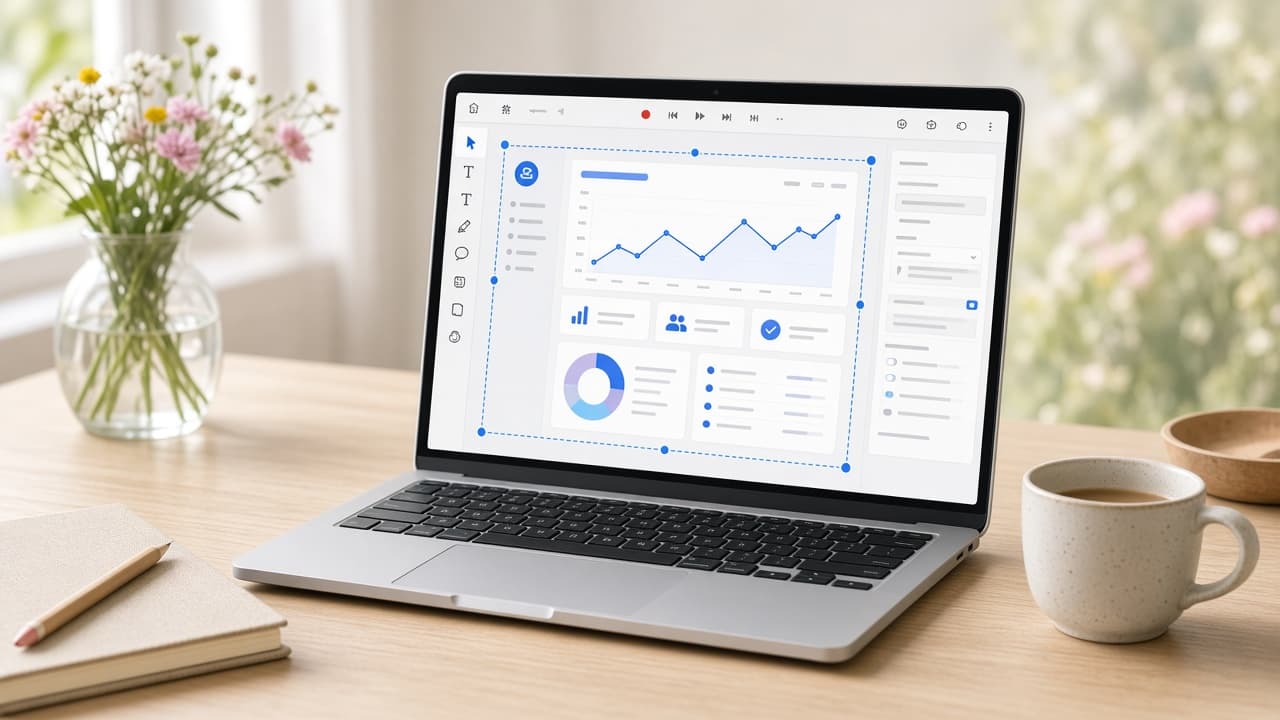
A sequence such as opening a filter, selecting “Active,” and confirming the choice should feel like one camera thought. If three separate zooms are glued onto those clicks, the result jitters even though the pointer barely moved. Screen Beaver can merge nearby beats in the same visual region into a continuous follow. Actions on opposite sides of the window remain separate, which keeps the route readable. The timeline still exposes those decisions, so you can split an overlong move or remove a follow that crossed an awkward layout shift.
Timing matters more than scale
Editors often obsess over whether a crop is 1.25x or 1.35x, but viewers notice timing first. A zoom that arrives after the menu closes is wrong at any scale. So is one that starts during a loading spinner and hides the result. Give the frame time to settle before the key interaction, then hold long enough for the eye to catch up. Watch the result at normal speed and at the small size where it will actually be embedded; a move that feels elegant full-screen can become disorienting in a narrow help-center column. On a fast agent-recorded flow, intentional pauses in the prompt can improve the final video more than another round of camera tuning.
Judge the zoom in context
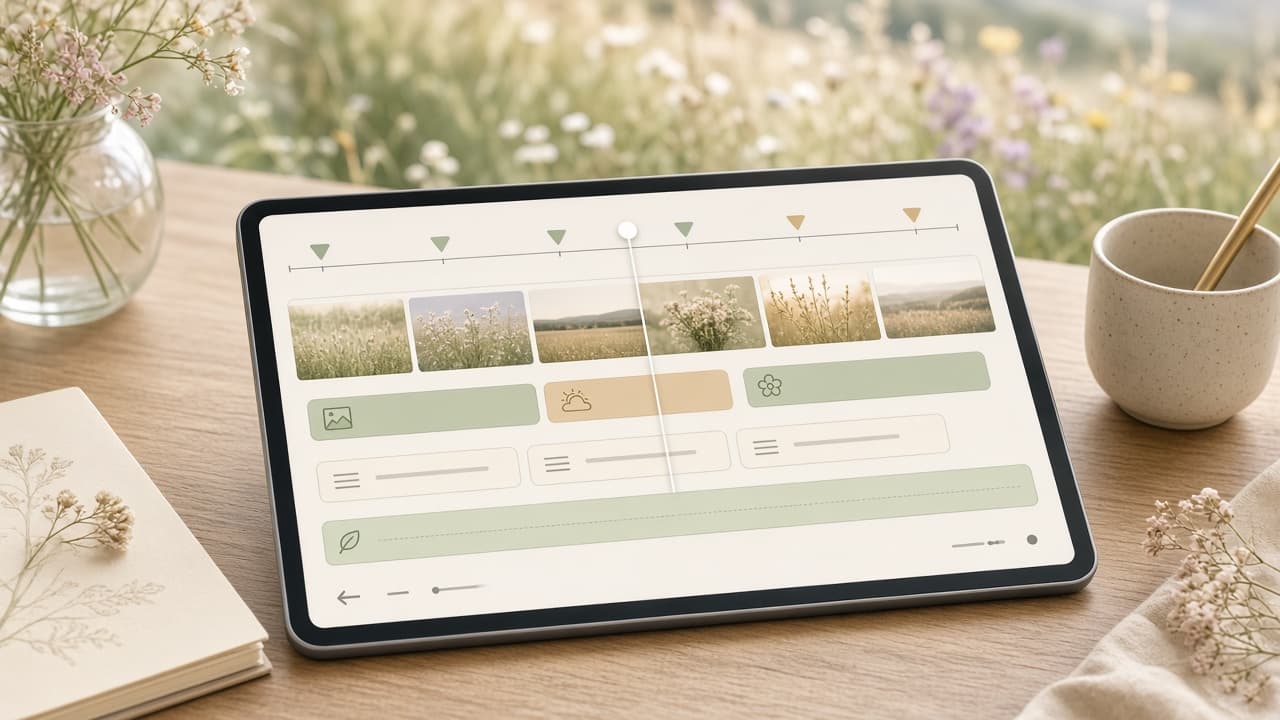
The same camera move can be right in one cut and wrong in another. A tight crop helps a thirty-second launch clip reach a tiny toggle quickly, while a documentation walkthrough may need the surrounding navigation so viewers can find the control themselves. Captions matter too: if a line occupies the lower third, an aggressive crop can trap it over the active interface. Review the frame with every final layer enabled, including pointer treatment and platform-safe margins. Auto zoom only sees the recording it is asked to polish; the editor has to account for where that recording will live and what the audience is trying to learn.
Treat auto zoom as a first edit
Run auto polish, then watch the recording at normal speed without touching the controls. Mark every moment where you felt pulled away from the useful information. Those are the zooms to delete or retime. I’d rather ship four convincing moves in a minute than fourteen merely acceptable ones. Screen Beaver keeps each beat editable, so automation doesn’t trap you in its opinion. The best outcome is almost invisible: viewers remember the feature and never think about the camera.