PRODUCT·AUGUST 9, 2026
Android USB recording for mobile product demos that still look cinematic
Mirror a phone over USB, capture 9:16, auto-plant tap zooms and SFX, then export beside your Windows desktop takes in one studio.
Screen Beaver Team·9 min read
A mobile product can be excellent and still look awkward in a demo. We've seen wireless mirroring drop frames during the one interaction that mattered, while camera-over-the-shoulder footage let a thumb hide the result. A landscape-first editor can make the vertical screen feel like an inconvenience too. Android USB recording gives the phone a stable path into Screen Beaver's Windows studio. You can capture the real app, keep its native 9:16 shape, and finish it with the same zoom, caption, sound, and local H.264 export tools used for a desktop walkthrough.
Prepare the phone before connecting it
Use a device close to what customers actually own, not only the fastest phone in the office. Charge it, enable the required USB debugging or capture permissions, and use a data-capable cable; many cheap cables provide power and nothing else. Set a predictable font size, disable battery saver, and turn on Do Not Disturb. A message preview from a colleague is embarrassing in a draft and unacceptable if it contains private information. Clean the status bar too, because a 3% battery icon makes a planned launch feel improvised.
Build a demo account with short, readable content. Long usernames and empty states that say “No data” may be realistic, but they don't explain the product well in fifteen seconds. If the flow depends on a push notification, stage it and rehearse the timing. If it depends on flaky test infrastructure, record in smaller sections. USB improves capture stability; it can't rescue an API that takes twelve seconds to answer while the viewer wonders if the app crashed.
Frame for the destination, not the editor
Vertical is the obvious choice for Shorts, Reels, and app-store previews, but don't assume one crop fits every channel. A phone screen can sit full-height in 9:16 with captions above or below it. On a 16:9 launch video, the device may need a branded background and enough side space for a short callout. Decide this before recording so important controls aren't trapped beneath captions. Screen Beaver's custom backgrounds help frame narrow footage without stretching the app or filling the sides with a blurry duplicate.
- Record at the phone's natural orientation and avoid rotating midway through a take.
- Keep taps deliberate so auto zoom has a clear point of interest to follow.
- Pause briefly after navigation; the viewer needs time to read the new screen.
- Capture desktop and Android segments with matching account data and terminology.
Make taps visible without turning them into fireworks
A viewer can't see your finger in a direct screen capture, which makes tap feedback important. Screen Beaver can use interaction points to place focused zooms and pair key actions with click or tap sounds. Keep the treatment restrained. Zooming into every toggle creates seasickness, and an effect on every tap makes a settings flow sound like an arcade cabinet. Highlight the action that changes the story: selecting a plan, sending a message, or opening the result. Routine navigation can stay quiet.
Typing deserves similar judgment. Watching a full email address appear character by character is rarely compelling. Record the meaningful start, trim the wait, and let the completed value sit long enough to register. A light typing sound can bridge the edit, but captions should carry any information the audience truly needs. If the keyboard covers the primary button, dismiss it before the next beat. These small pauses make the app look responsive because the viewer understands exactly what happened.
Connection trouble is usually mundane. If Screen Beaver can't see the device, unlock the phone, confirm the USB permission prompt, and swap the cable before reinstalling everything. Some cables bundled with chargers don't carry data at all. Keep a second known-good cable nearby when filming on a deadline. Long sessions can warm the phone and trigger performance throttling, so capture demanding animations early and give the device a break between takes. USB is more dependable than wireless mirroring, not infallible; a short test that includes scrolling, typing, and audio will expose most problems before the real performance.
Combine mobile and Windows without a visual jump
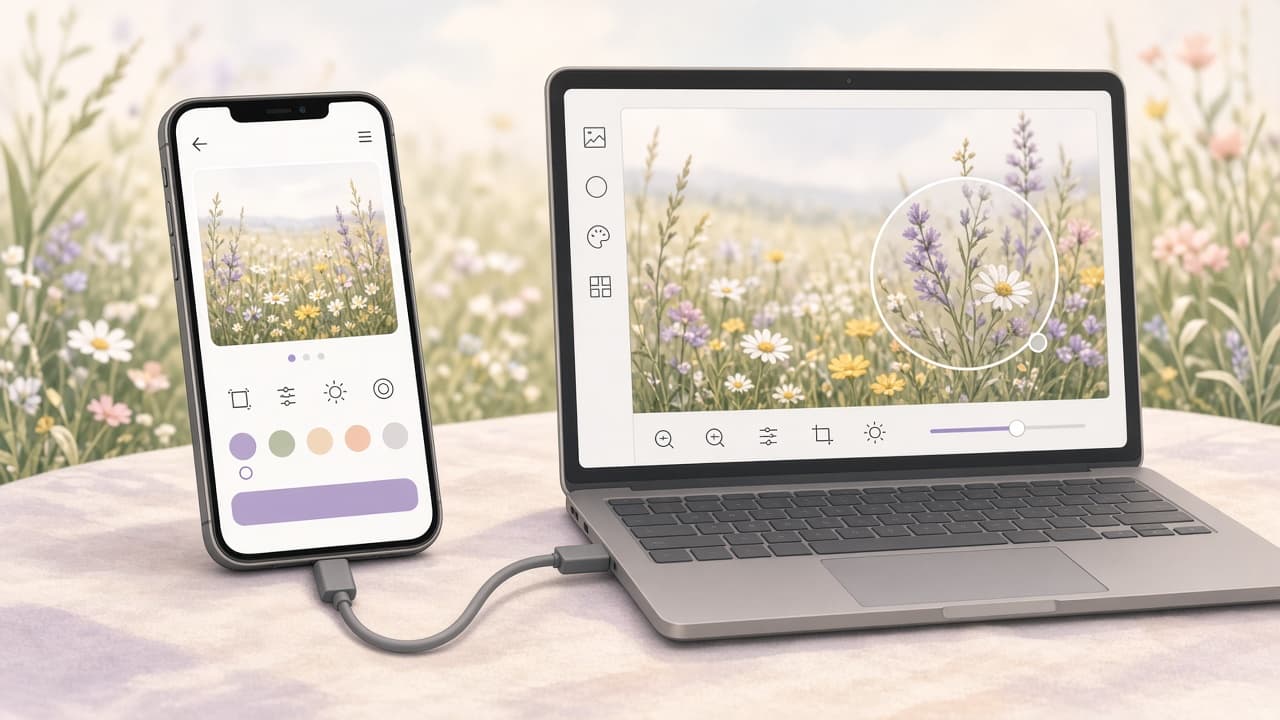
Many products cross devices: create something on Windows, approve it on Android, then show the desktop result. Record both parts in Screen Beaver and use a repeated background, caption style, and sound palette to make them feel like one film. A simple scene transition is enough. You don't need a spinning 3D phone between every step. Match the state carefully—same project name, same avatar, same timestamp—or viewers will sense discontinuity even if they can't explain it.
Before the final local H.264 export, watch the cut on an actual phone. Text that looked generous on a desktop preview can become microscopic after a social app adds its controls. Check the first frame, because some feeds show it as the poster image, and listen once through a phone speaker rather than studio headphones. Android USB capture removes a lot of technical friction, but the cinematic part comes from editing with intent: clear taps, readable pacing, and effects that support the product instead of competing with it.